After configuring your Community, you will be able to invite participants to access the platform.
In OW Voices, participants are invited through access invitations. This process can be done in two ways:
Batch import
Registration link
INDEX
We recommend that all Community configurations and segmentations are already defined before sending invitations.
Learn more about participant segmentation in the specific article in the knowledge base.
Batch Import
Batch import is the recommended method when you need to invite a large number of participants at the same time.
With this method, participants receive an invitation email to register on the platform.
To complete the process, you will need to use a .xlsx (Excel) file containing participant information.
How to Invite Participants in Batch
1. Go to the “Participants” menu.
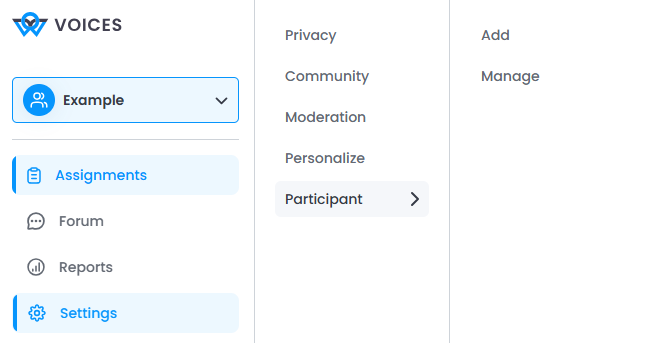
2. Click “Add”.
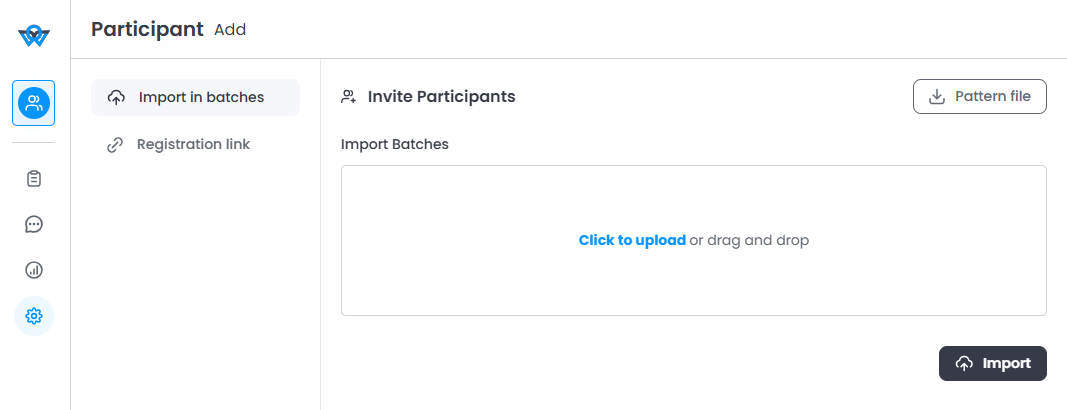
3. Click “Pattern file” to download the model file.
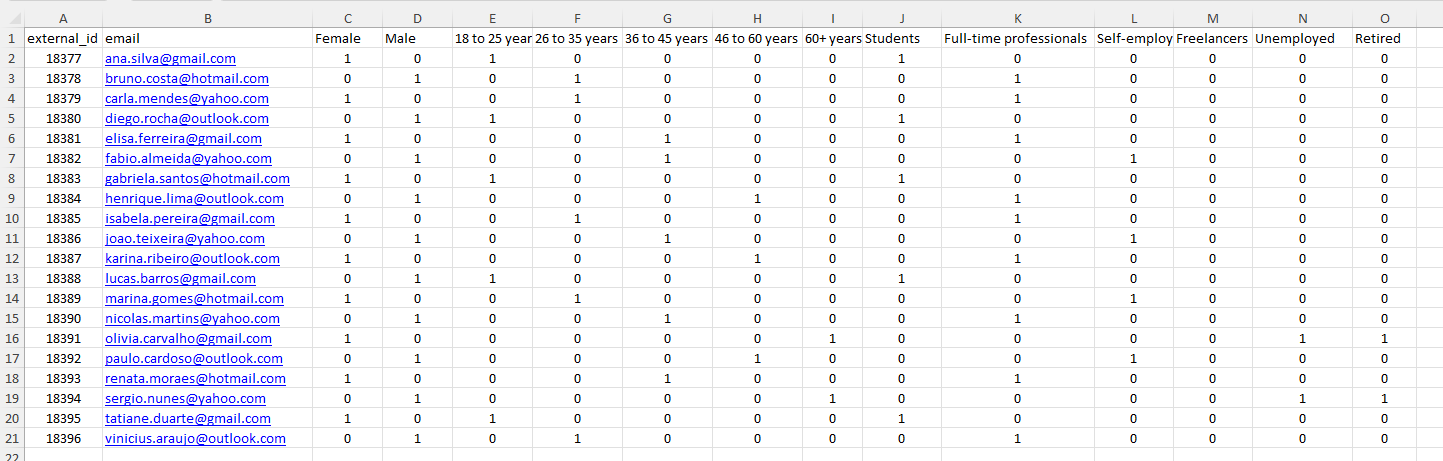
4. Fill in the file with the participants’ information.
5. Upload the .xlsx file.
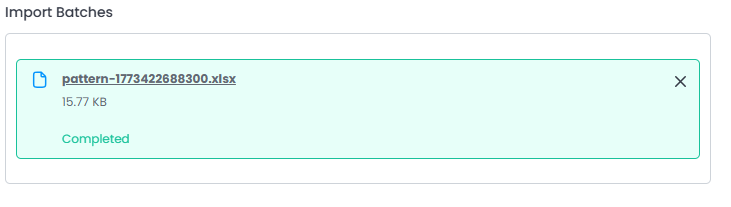
6. Click “Import”.

After uploading the file, the platform will display a preview of the imported data. Verify that all information is correct before continuing.
In the final step, you will need to define the subject and content of the invitation email that will be sent to participants.
Important: review all information before clicking “Send”, as the invitations will be sent immediately after confirmation.
File Completion
Each row in the file represents a participant who will be invited to the Community.
The external ID (external_id) is an identifier defined by you for each participant.
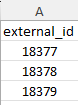
We recommend using unique IDs, as this makes it easier to organize and locate participants on the platform
This column must contain the participant’s email address, which will be used to send the invitation.
The email must follow the standard format:
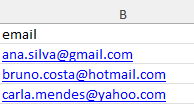
Important: Do not use duplicate emails and make sure all email fields are filled correctly.
Segments
The other columns represent the segments created in the Community.
After each segment name, there will be a number in square brackets [ ], which is the segment identifier on the platform. This number must not be changed.
To fill in the segments:
1 → participant belongs to the segment
0 → participant does not belong to the segment
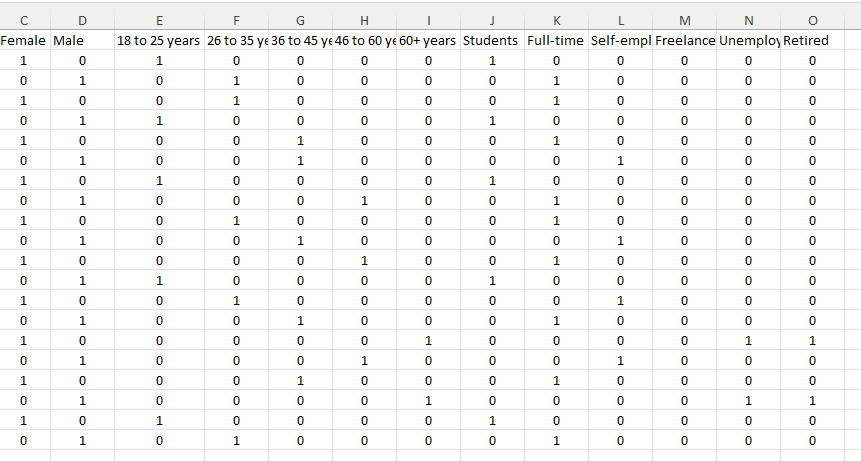
Important: all cells must be filled with 1 or 0.
A participant may belong to more than one segment.
Registration Link
Another way to invite participants is by using a Registration Link.
With this method, you can generate a registration link and send it directly to the participant, without the platform automatically sending an email invitation.
This option is recommended for individual or occasional invitations.
How to Generate a Registration Link
1. Go to the “Participants” menu.
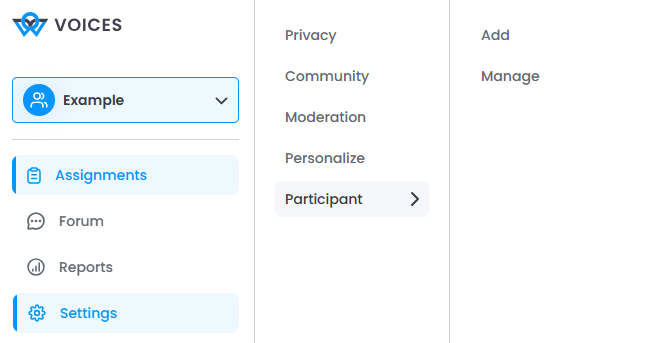
2. Click “Add” and access the “Registration Link” tab.
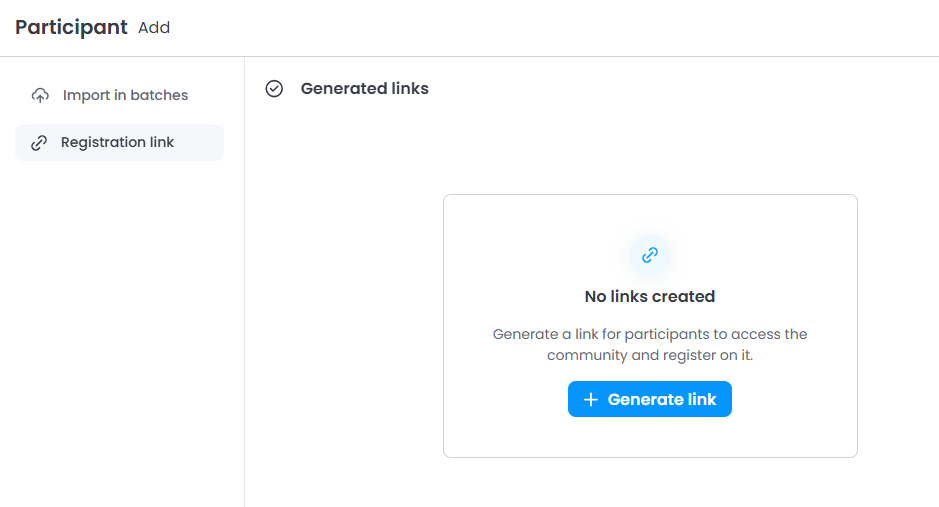
3. Click “Generate link”.
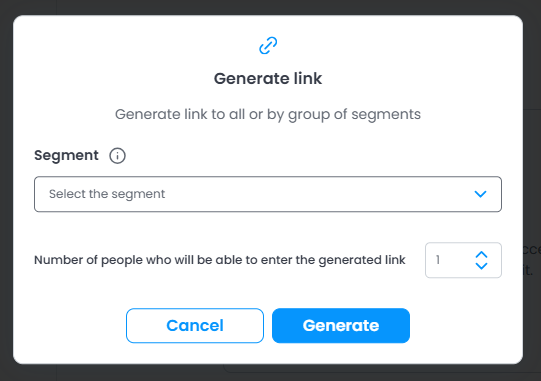
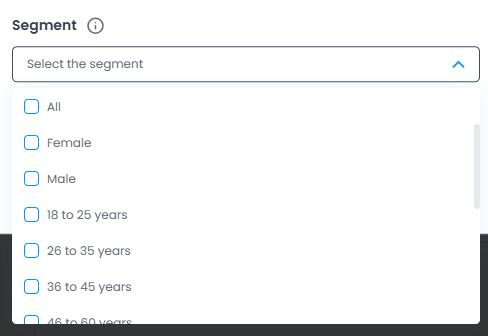
4. Select the segments to which participants belong.
5. Define how many people will be able to use the link to register.

6. Click “Generate”.

7. After generating the link, simply copy it and send it to the participants.

If you need to send the link via WhatsApp, Telegram, or other social networks, avoid sharing it in public groups. Ideally, the link should always be sent directly to the participant through a private channel.
Important: the same link should only be shared with more than one participant if they all belong to the same segments. If participants belong to different segments, you will need to create separate links.
Link Management
On the same page, you will be able to monitor:
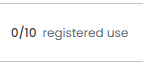
how many participants have already registered using the link
 which segments are associated with the link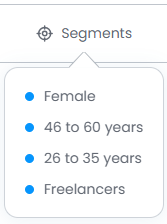
activate, deactivate, and delete registration links
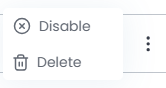
If a link is deleted, it will be permanently removed and cannot be recovered.
Important: before deleting a link, make sure to deactivate it first.
Manage Participants
After sending invitations, you will be able to track participant status in the Manage Participants area.
In this section, you can:
check which participants have already registered
resend invitations
review registration information
perform other management actions
For more details, see the article about Participant Management.
Was this article helpful?
That’s Great!
Thank you for your feedback
Sorry! We couldn't be helpful
Thank you for your feedback
Feedback sent
We appreciate your effort and will try to fix the article