Email tracking is the area of the platform where those moderating the community can follow the emails sent by the community and what happened to each one: delivery, failure, open and click.
With it, you can check whether a notification reached the participant, identify addresses with delivery problems and follow engagement with the emails sent.
Think of Email tracking as the community's sending history. Whenever the platform sends an email, such as a new task notice or a new operator invitation, it appears in this list with its status.
Where to find it
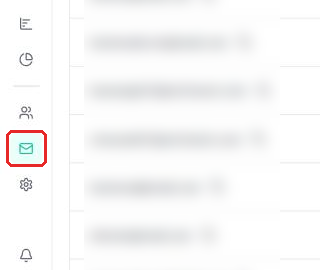
To access it, click the Email tracking icon in the platform's sidebar.
Sent emails table
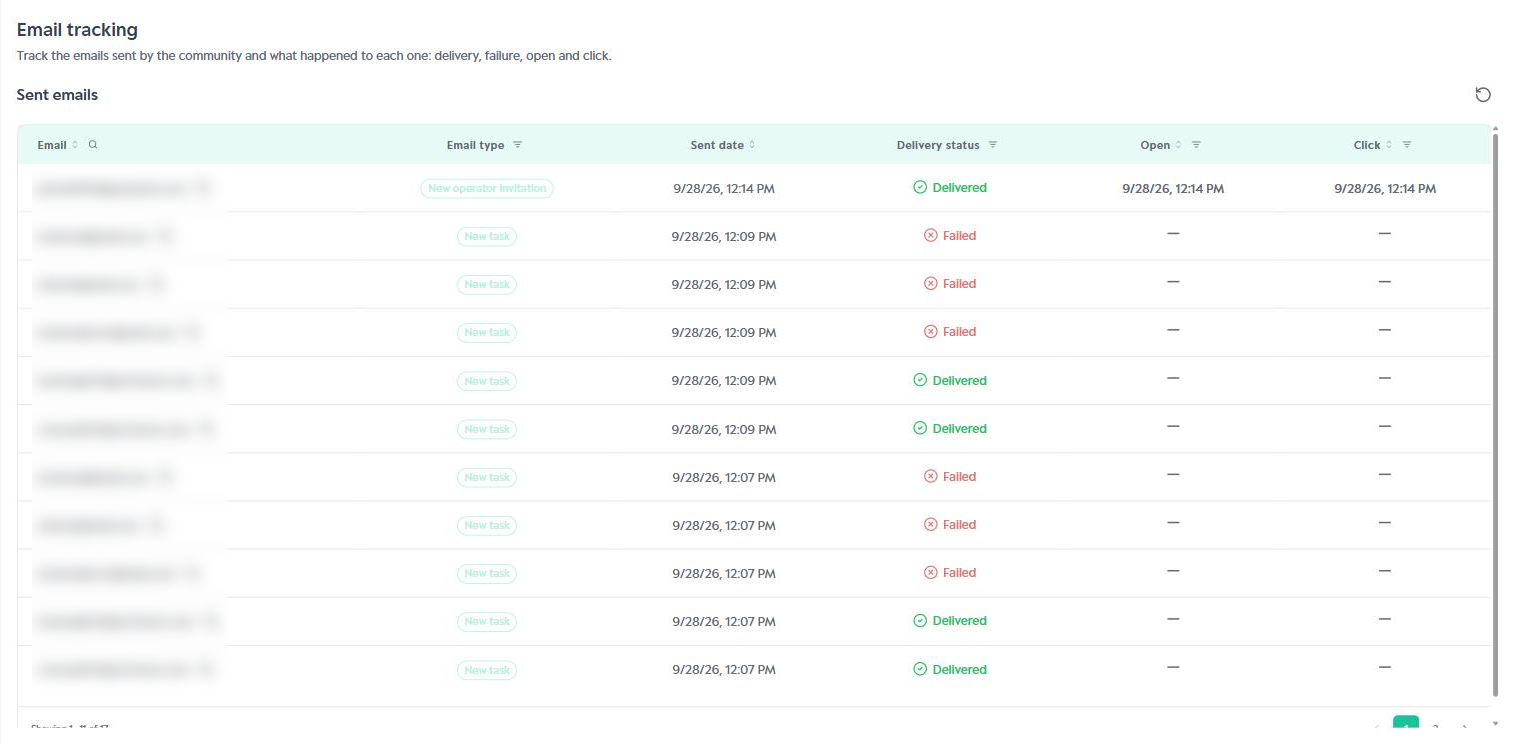
Email: Recipient's address. The button next to it lets you copy the email and the magnifying glass icon lets you search for a specific address.
Email type: Type of notification sent, for example: New task, New operator invitation, Community created and Community finished.
Sent date: Date and time the email was sent.
Delivery status: Shows whether the email was Delivered or Failed.
Open: Date and time the email was opened by the recipient.
Click: Date and time the recipient clicked a link in the email.
The Email, Sent date, Open and Click columns can be sorted. When there is no open or click record, the column shows a dash (—).
Delivery status
Delivered: The email was delivered to the recipient's server. Hovering over the status shows the delivery date.
Failed: The email could not be delivered. Hovering over the status shows the failure date and the reason, for example, when the destination server refused the message or when the address is on a block list.

Open and click
Hovering over the open or click date shows the first and last occurrence and the total number of opens or clicks for that email.

Important note:
Opens are not always recorded, as this depends on the email service used by the recipient. Therefore, an email with no recorded open may have been read normally. The other statuses (delivered, failed and click) behave consistently.
Filters
Filters let you refine the list of sent emails. To use them, click the filter icon next to the column name, select the desired options and click Apply.

Email type: Community created, Community finished, New operator invitation and New task.
Delivery status: Delivered and Failed.
Open: Opened and Not opened.
Click: Clicked and Not clicked.
Important tip:
Use the refresh data button, in the upper right corner of the table, to reload the list without leaving the screen. Combining the Failed filter with the reason shown in the status helps you quickly identify addresses that need to be corrected.
Was this article helpful?
That’s Great!
Thank you for your feedback
Sorry! We couldn't be helpful
Thank you for your feedback
Feedback sent
We appreciate your effort and will try to fix the article