Response labeling allows the organization and classification of participants' contributions within the Report tab. Through labels, administrators can identify patterns, highlight recurring themes, and group responses according to criteria defined during the study analysis.
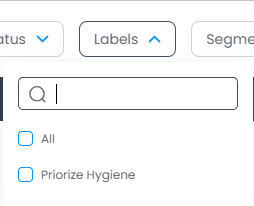
This feature aims to facilitate the organization and reading of the collected data. By applying labels to responses, it becomes easier to locate related content, structure the analysis of the information, and track different types of feedback shared by participants through filters.
Create label
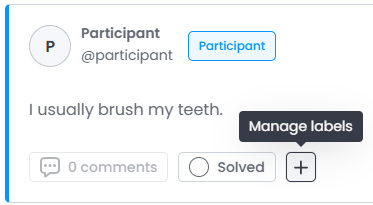
To create a label, in the Report tab, access a response and click the + button.
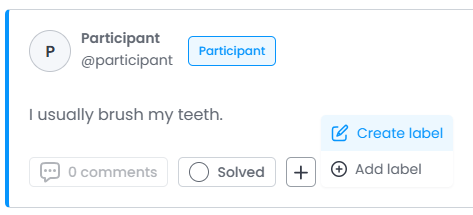
Add the label name, description, background color, and text color, then click Create.
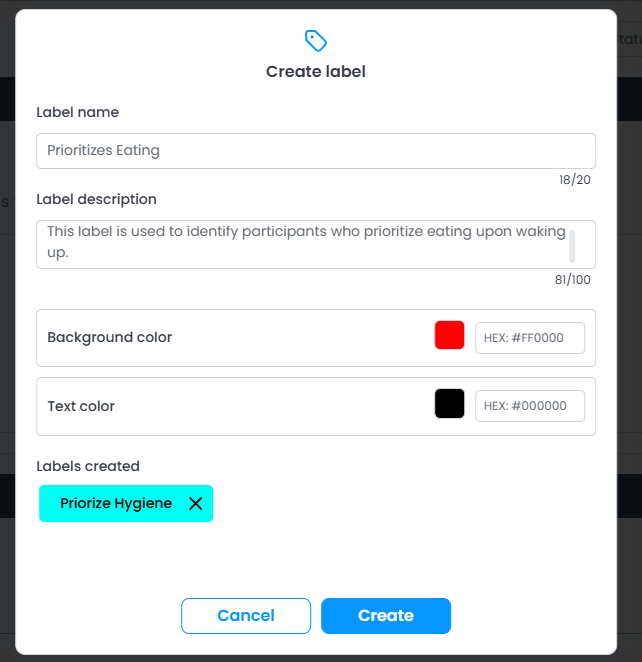
Label created!
Apply label to a response
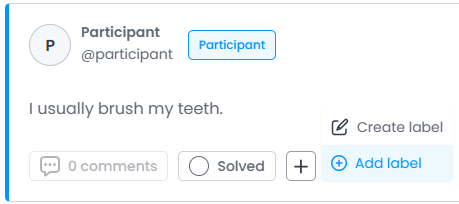
In the list of created labels, click the one you want to add and then click the Add button.
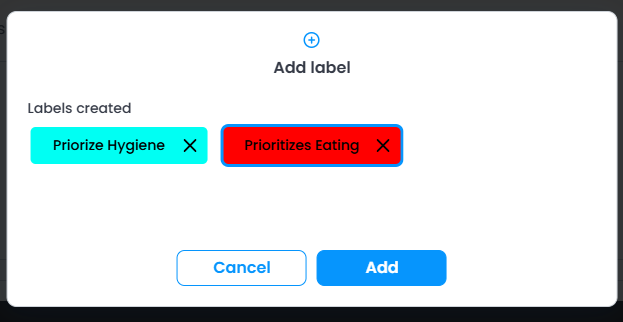
Done, label added.
Was this article helpful?
That’s Great!
Thank you for your feedback
Sorry! We couldn't be helpful
Thank you for your feedback
Feedback sent
We appreciate your effort and will try to fix the article