There are four types of access on the platform: Administrator, Moderator, Observer, and Participant. Each profile has specific permissions and responsibilities within the Community. Below, you will better understand the role of the Moderator.
INDEX
Moderator
The Moderator user has a high level of access within the Community, second only to the Administrator role. This means they can monitor and manage several platform functionalities, assisting in the management of the study and interaction with participants.
Moderator accounts are created by the Community Administrator. After the account is created, the user will be able to perform the first access to the platform using the credentials sent by email. Learn more about the moderator’s first access.
Among the main responsibilities of the Moderator are monitoring Community activities, interacting with participants, moderating forum discussions, and supporting the organization of study activities. The Moderator can also monitor responses submitted by participants, review published content, and contribute to the proper flow of discussions and activities within the Community.
It is important that this type of access is granted responsibly, preferably to users who have already participated in the training provided by the OW Voices Support team, ensuring the correct use of the platform's functionalities.Moderator Tools
The Moderator has access to important platform menus that allow them to monitor and manage several Community activities.
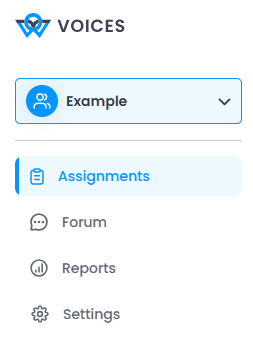
Moderator Menu
The “Moderator” menu is a configuration area of the Community and is located in the upper right corner of the platform.
In this menu, the Moderator can access different sections related to Community management, such as:
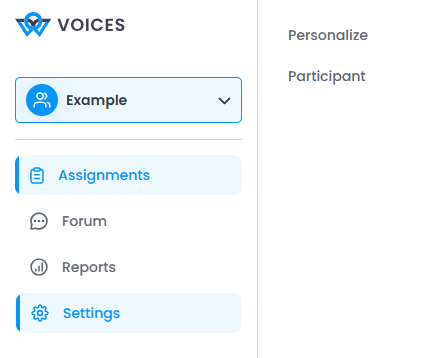
Customize: allows customizing the visual identity of the Community and configuring the study’s terms and policies.
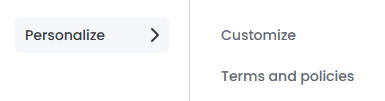
Participants: allows viewing and managing the participants who are part of the study.
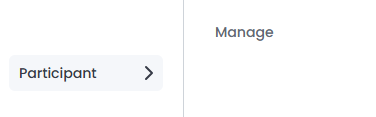
Each of these functionalities has a specific guide with detailed instructions for use.
Activities
In the “Activities” menu, the Moderator can view all activities available in the Community and also create new activities for the study.
Through this menu, it is possible to track created activities, check their settings, edit tasks, copy or delete activities, and access their general information.
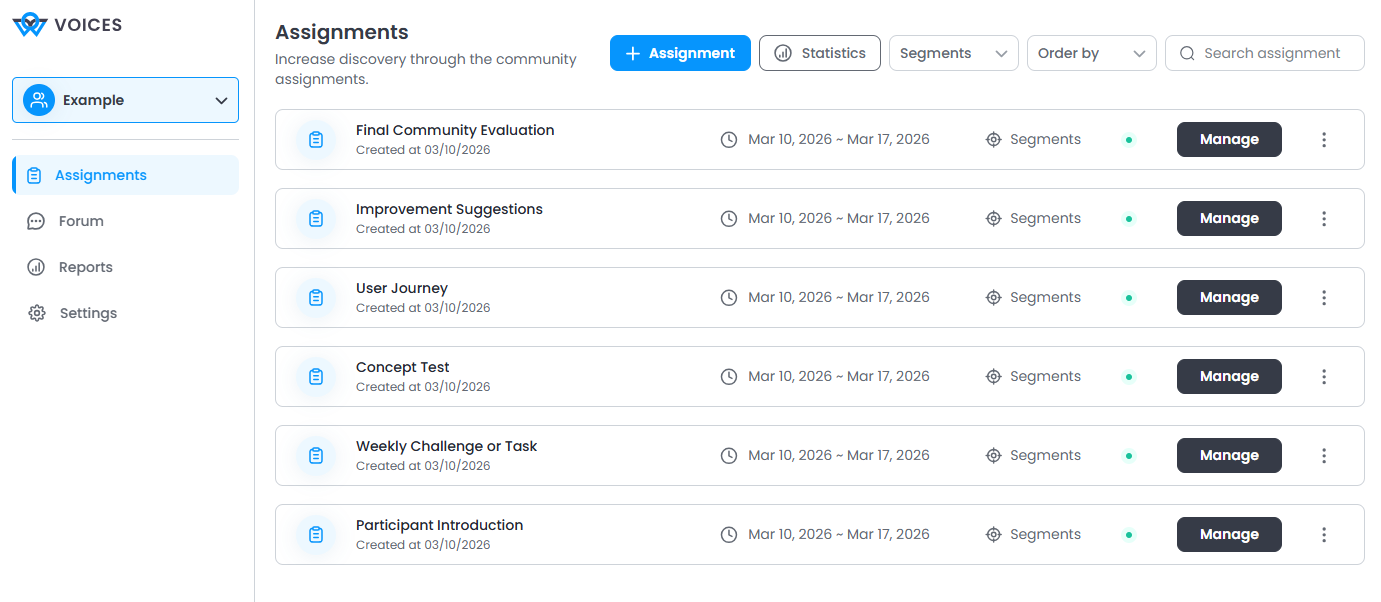
For detailed instructions on how to create and manage activities, see the specific document about activity creation.
Forum
In the “Forum” menu, the Moderator can monitor the interactions that take place within the Community.
This area allows publishing content, following discussions, and interacting with participants through comments and reactions.
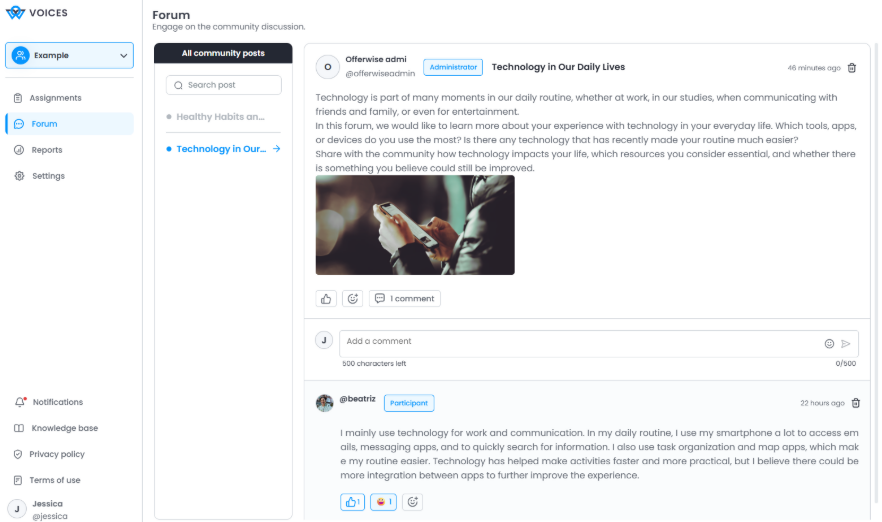
For more details on how to use this feature, see the specific guide on the Discussion Forum.
Reports
The “Reports” menu allows the Moderator to monitor the results of activities carried out in the Community.
In this area, it is possible to view participant responses, submitted media, charts, and activity transcripts, as well as use filters to organize the displayed information.
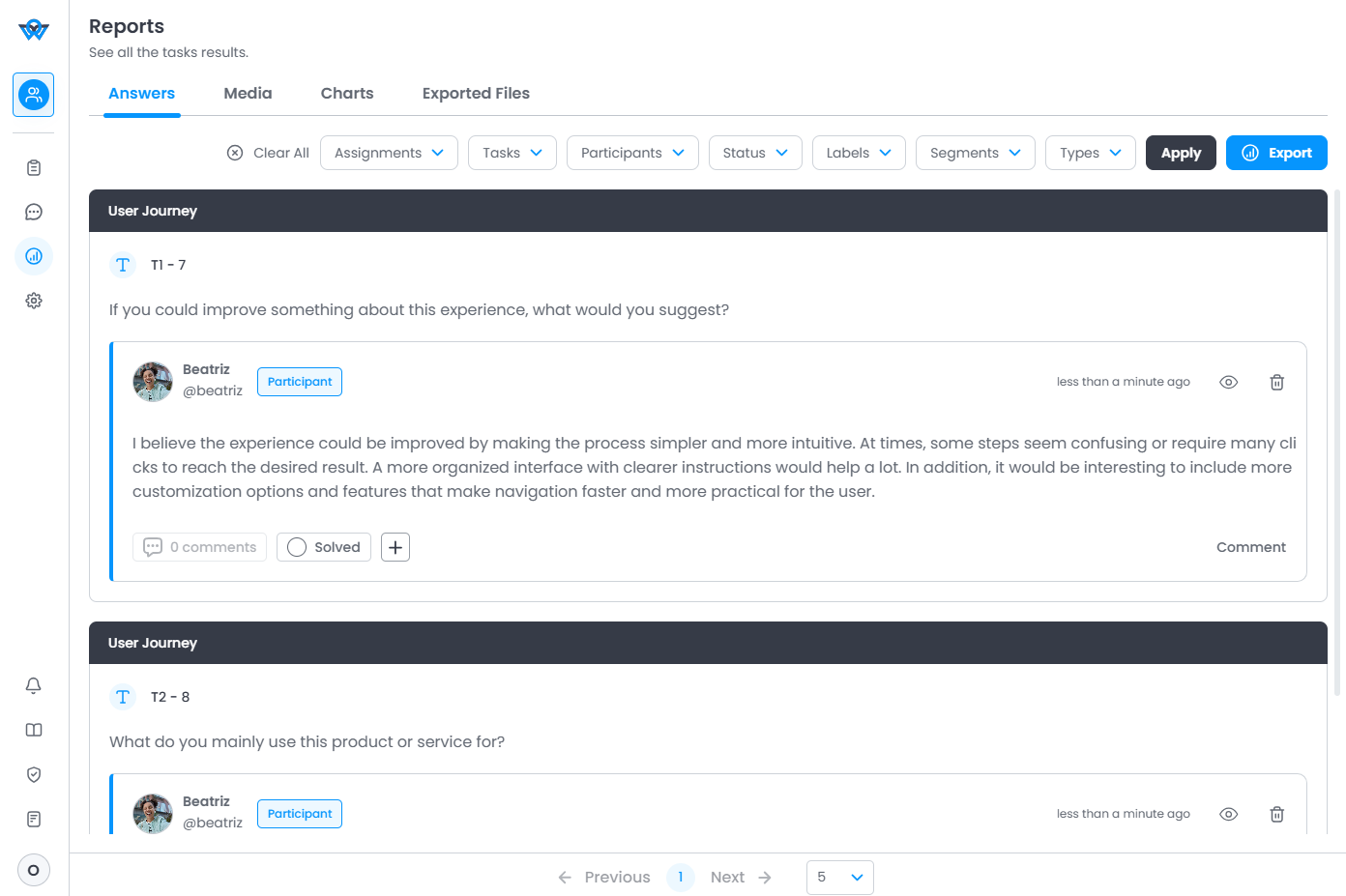
It is also possible to export activity data for external analysis.
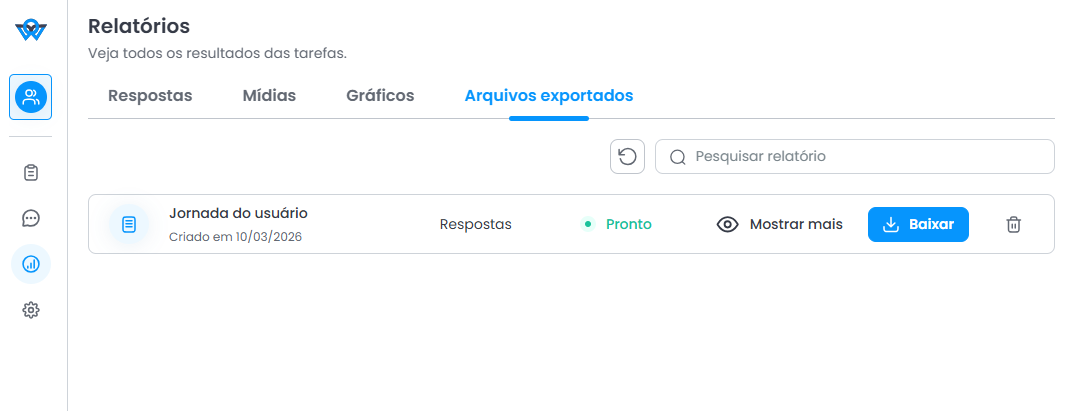
Additionally, through this menu, the Moderator can add comments and manage participant responses when necessary.
For more information on how to use reports and perform exports, see the specific document on data export and results analysis.
Was this article helpful?
That’s Great!
Thank you for your feedback
Sorry! We couldn't be helpful
Thank you for your feedback
Feedback sent
We appreciate your effort and will try to fix the article