Logic and conditions change a participant's path within an activity based on their answers. Use them when an answer should change the flow or when not every participant needs to see every task.
INDEX
When to use
- Use logic and conditions when an answer changes the activity flow or when not every participant needs to see everything.
- Do not use them when the flow does not need to change or when segmentation solves the case.
Turning it on in the activity
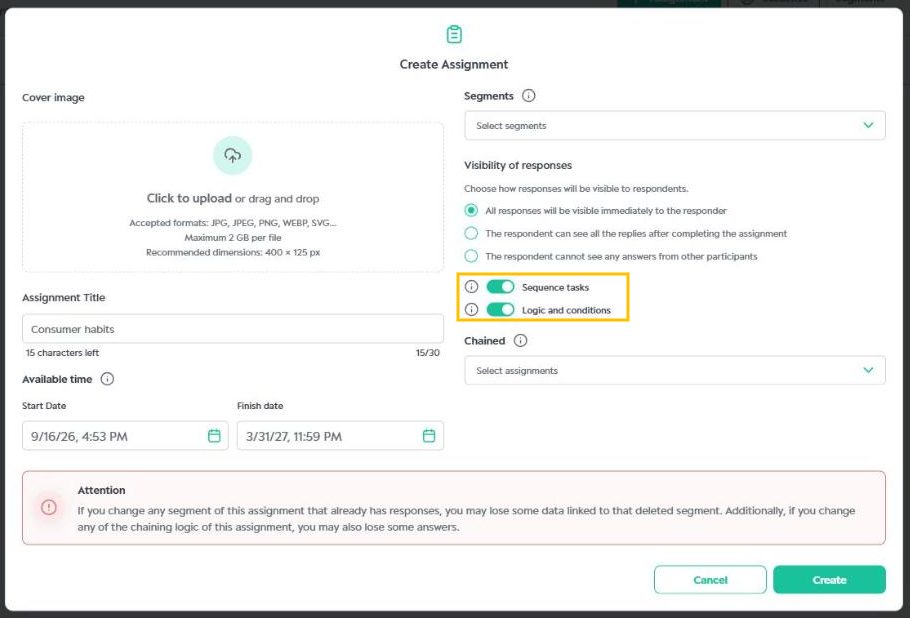
To use logic, turn on Sequence tasks and Logic and conditions when creating or editing the activity. Without both options, logic cannot be applied. See Create an activity.
Example
A brand wants to evaluate a new product design. In the community, the activity First impressions of the design was created with these tasks:
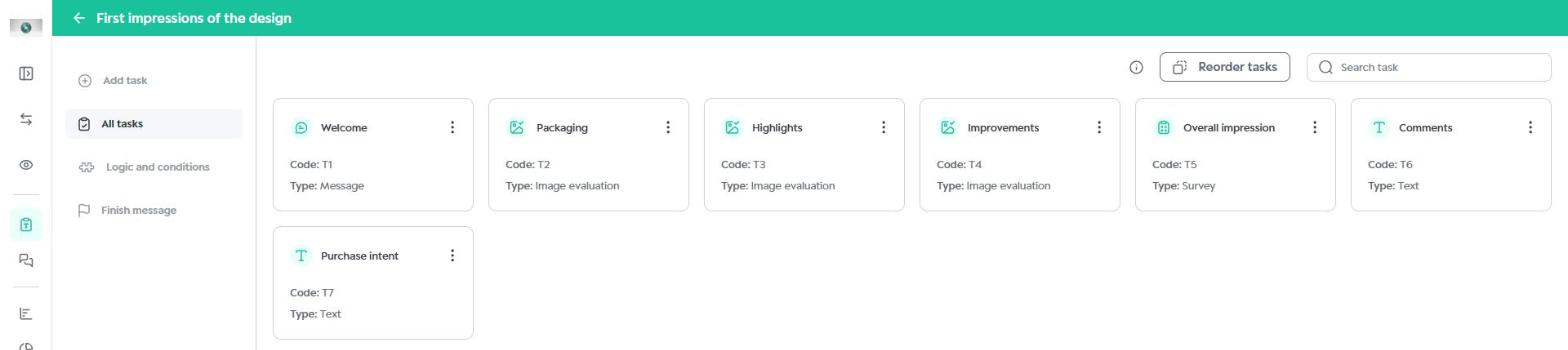
Task T5 (Overall impression) asks whether the participant's impression was positive, neutral or negative. The idea is:
- negative impression: go to T7 (Purchase intent);
- neutral impression: go to T6 (Comments);
- any other answer (positive): move on to the next task.
Creating a logic
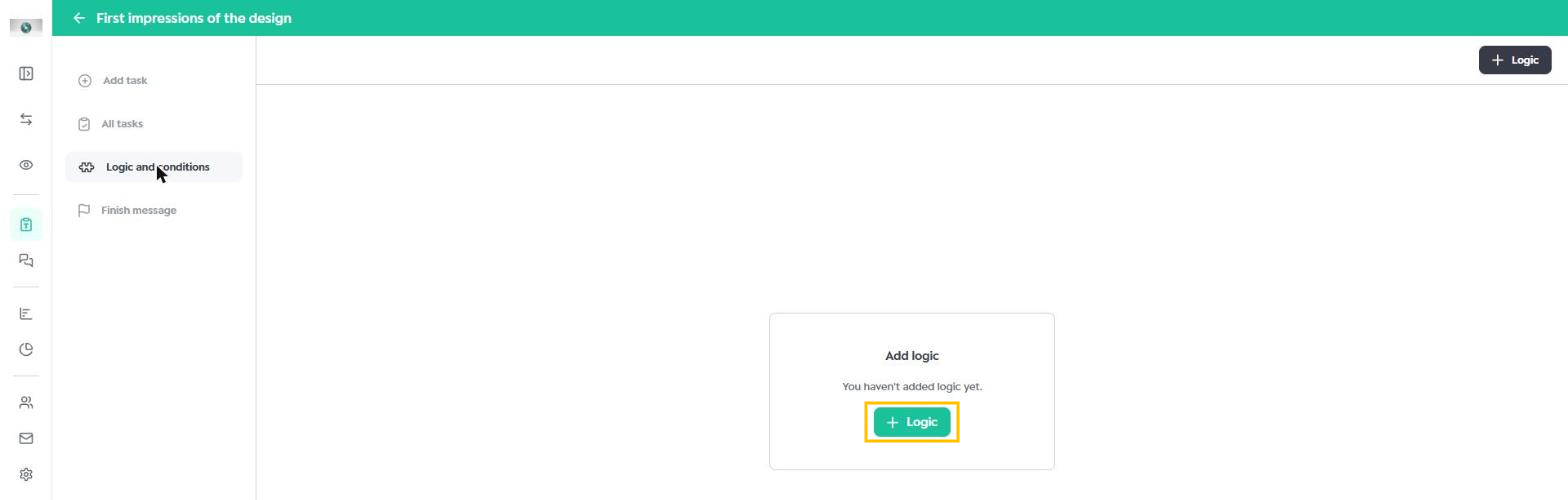
1. In the activity, open Logic and conditions in the left menu and click + Logic.
2. Under Task, select the task that will get the logic (T5 in the example).
3. Click + Condition. Under If participant answer, choose the task, the Answer and, if any, the Sub answer. Then, under go to, choose the destination task, Next or Finish.
4. Repeat step 3 for each condition. Under Otherwise, set where participants go if they match no condition.
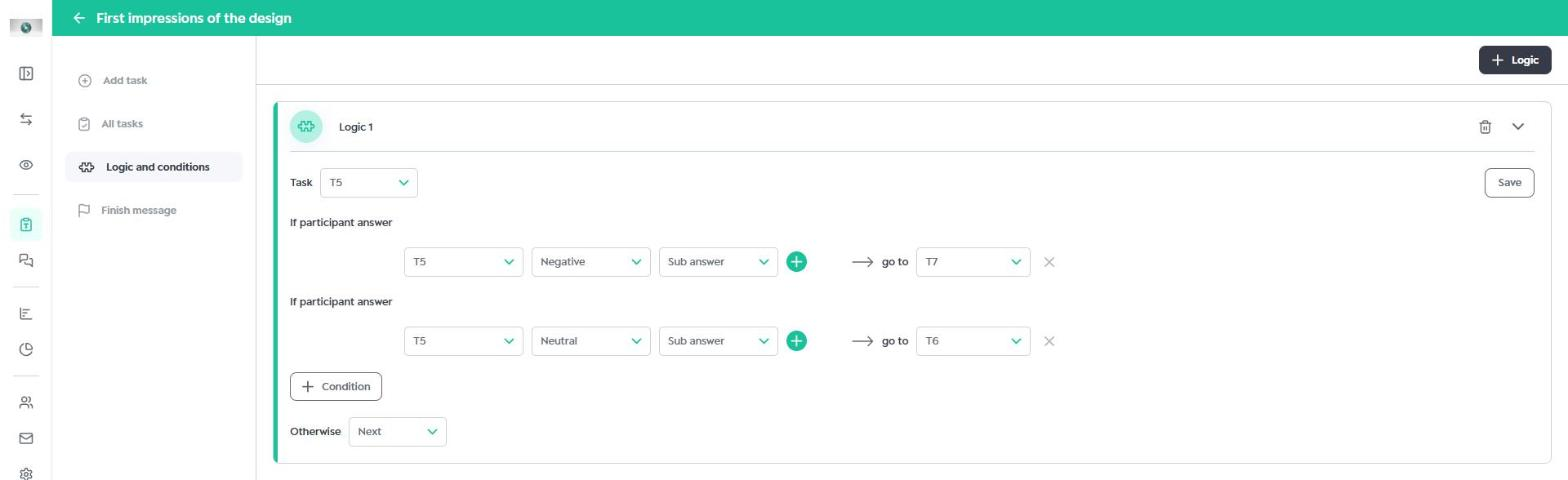
5. Click Save to apply the logic to the activity.
Logic applied in the example: if the answer to T5 is Negative, go to T7. If it is Neutral, go to T6. Otherwise, move on to the next task.
And and Or operators
To combine criteria in the same condition, click the green + next to the sub answer. A new row appears with the Operator field:
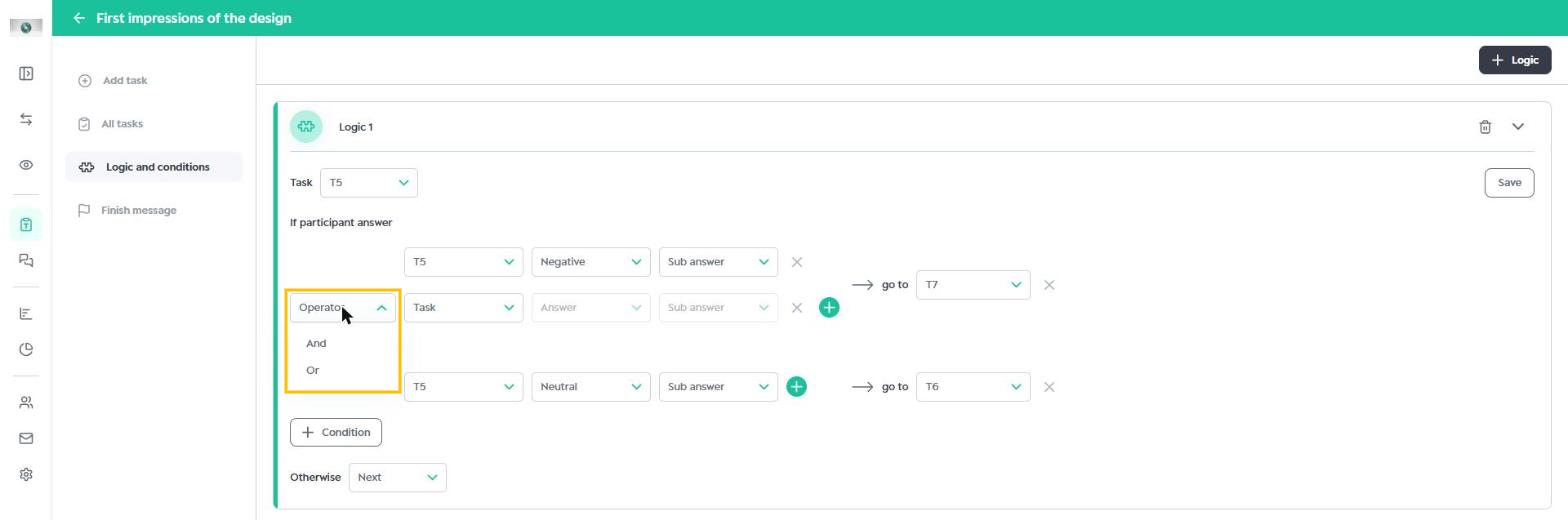
- And: the participant is only redirected if they meet all the criteria. Example: in a packaging evaluation, those who select Creative and Attractive go to T5.
- Or: meeting one of the criteria is enough. Example: those who select Creative or Attractive go to T5.
Was this article helpful?
That’s Great!
Thank you for your feedback
Sorry! We couldn't be helpful
Thank you for your feedback
Feedback sent
We appreciate your effort and will try to fix the article